Introduction If you are looking for a free, no-nonsense way to broadcast live audio to your internet radio station, BUTT (Broadcast Using This Tool) is the industry standard. It runs on Windows, Mac, and Linux, and it is completely open-source.
In this guide, we will show you how to connect BUTT to your AZ-StreamingServer station (CentovaCast or AzuraCast) in under 5 minutes.
Prerequisites
Download BUTT: Get the latest version from the official SourceForge page.
Connection Details: Your Server IP, Port, and Password.
Step 1: Add Your Server Details #
1. Open BUTT.
2. Click the Settings button (the main interface will expand).
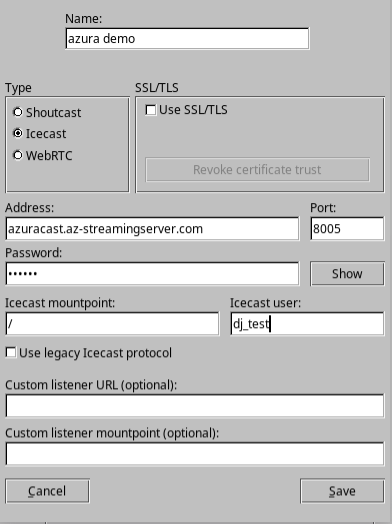
3. Under the Main tab, look for the “Server” section and click Add.
A “Server Settings” window will appear. Fill it in as follows:
– Name: Give it a name (e.g., “My Radio Station”).
– Type: Select SHOUTcast or Icecast depending on your hosting plan.
– Tip: If you are using AzuraCast with mount points, select Icecast.
– Address: Enter your server hostname (e.g., radio.az-streamingserver.com).
– Port: Enter your Port (e.g., 8000).
– Password: Enter your DJ Password or Source Password.
– Icecast User (Icecast Only): If using AzuraCast/Icecast, enter your DJ username here (e.g., dj_mike).
Click Save.
Step 2: Configure Audio Settings #
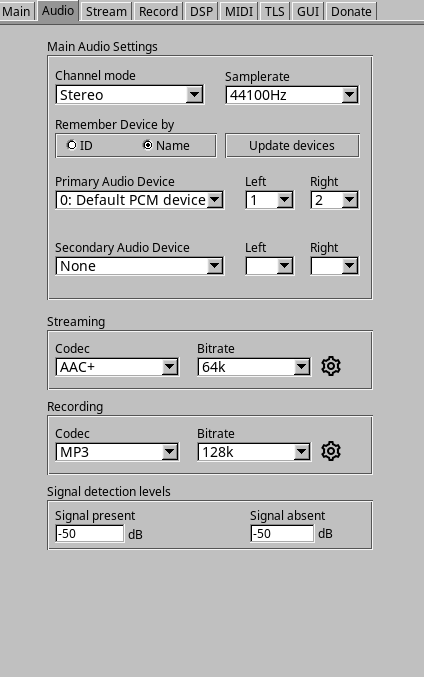
Now, tell BUTT where to get the audio from (your microphone or mixer).
1. Click on the Audio tab in the Settings window.
2. Audio Device: Select your microphone, USB Mixer, or “Stereo Mix” (if you want to stream PC audio).
3. Channel: Select Stereo (unless you are doing talk radio only, then Mono is fine).
4. Streaming Codec:
– Format: MP3 or AAC+.
– Bitrate: 128k (for MP3) or 64k (for AAC+).
Step 3: Start Broadcasting #
1. Close the Settings window.
2. On the main screen, make sure your new Server is selected in the dropdown menu.
3. Click the Play button (Triangle icon).
4. Status Check: It should say “Connecting…” and then “Stream time: 00:00:01”.
If the timer starts counting, you are live! 🔴
Troubleshooting Common Errors #
Error: “Connection refused”
– Cause: Usually a wrong Port or Password.
– Fix: Double-check your Port number. If you are using SHOUTcast v1, ensure you are not using a DJ username (leave the User field blank).
Error: “Could not open audio device”
– Cause: BUTT cannot access your microphone.
– Fix: Go to your Windows Sound Settings > Privacy and ensure apps are allowed to access your Microphone.
Need a reliable server to connect to? BUTT works best with a high-performance network. Try our managed CentovaCast Plans starting at just $2.95/mo. View Plans


