
Introduction: RadioBOSS is one of the most popular automation tools for Windows, and AzuraCast is the modern standard for broadcasting. Connecting them allows you to switch from your AutoDJ to a live show seamlessly.
In this guide, we will show you how to configure the Broadcasting Encoder in RadioBOSS to connect to your AZ-StreamingServer AzuraCast station.
Step 1: Get Your DJ Credentials #
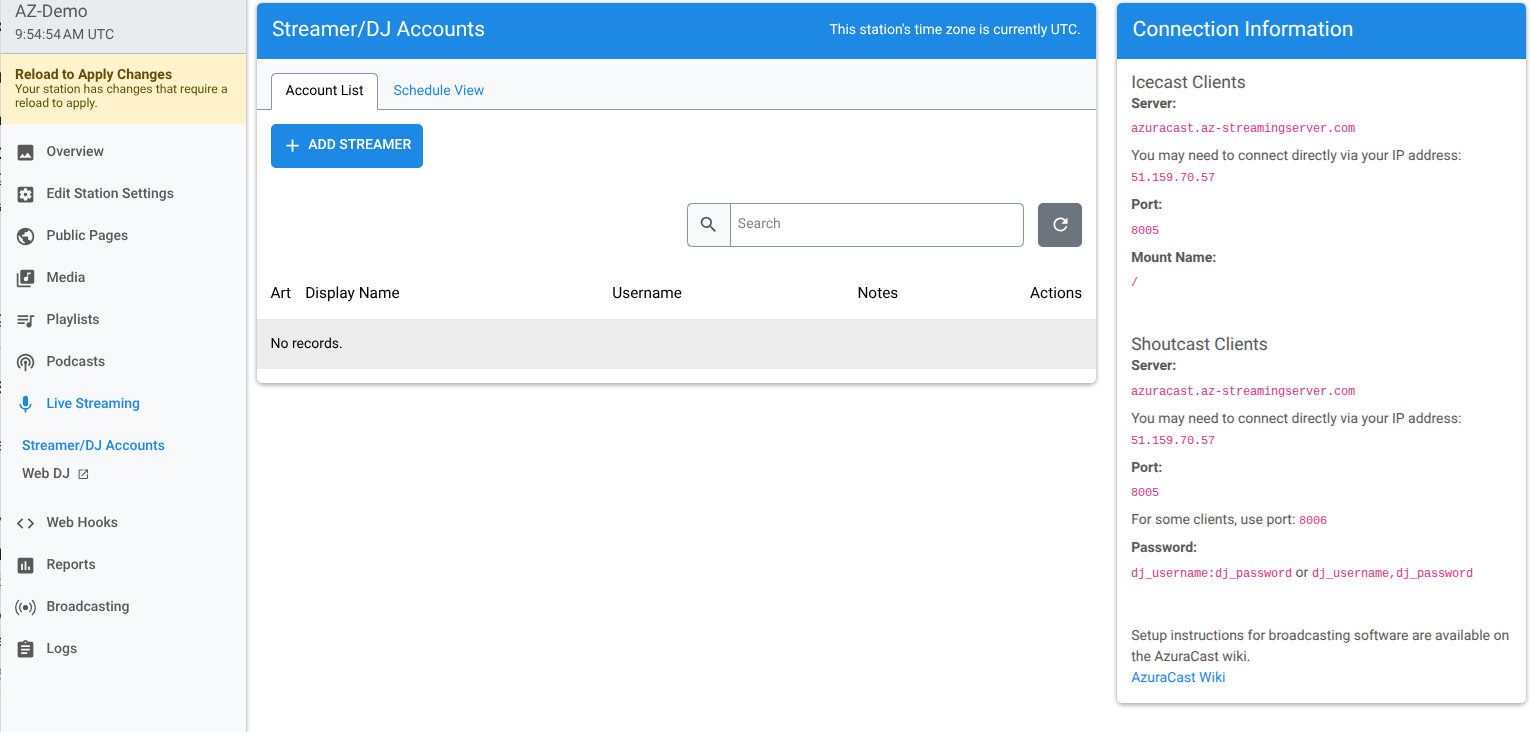
Before opening RadioBOSS, you need your unique “Streamer” details. You should not use the Administrator password for live broadcasting.
1. Log into your AzuraCast Dashboard.
2. Click on “Streamer/DJ Accounts” in the sidebar.
3. Click “Add Streamer”.
4. Create a username (e.g., dj_live) and a secure password.
5. Click Save.
(Note: Ensure the “Enable Broadcasting” switch is turned ON for your station).
Step 2: Configure RadioBOSS Encoder #
1. Open RadioBOSS.
2. Go to Settings (Gear Icon) > Broadcasting.
3. Check the box “Broadcasting enabled”.
4. Click the “+” (Plus) button to add a new encoder.
Step 3: Enter Connection Details #
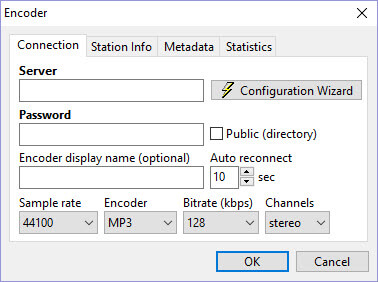
A “Configuration” window will appear. Fill it in as follows:
Server: [Your-Server-IP]:[Port]
Tip: You can find this on your AzuraCast dashboard under “Quick Links”. It usually looks like radio.az-streamingserver.com:8000.
Password: source_password OR dj_username:dj_password
Critical Tip: If you are using Icecast (Mount Points), the password format is usually dj_username:dj_password (separated by a colon).
Station Name: Your Station Name.
Format: MP3 or AAC+.
Bitrate: 128kbps (Recommended for MP3) or 64kbps (Recommended for AAC+).
Step 4: Troubleshooting Common Errors #
Error: “Cannot start broadcasting (Error 401)”
Cause: Incorrect password or username format.
Fix: If you created a DJ account named mike, try entering the password in RadioBOSS as mike:yourpassword.
Error: “Error 2 (Connection Refused)”
Cause: The port is wrong or the AutoDJ is refusing to disconnect.
Fix: Ensure you are using the specific DJ Port (sometimes different from the listener port). Check your AzuraCast dashboard for “DJ Port”.
🚀 Need a reliable AzuraCast Server? #
Stop struggling with VPS configurations. AZ-StreamingServer provides fully managed AzuraCast hosting with pre-configured DJ ports and 24/7 support. View AzuraCast Plans


